

How to transfer data from a Gorelocker Machine to a computer?
Jul 18, 2025
Transferring data from a Gorelocker Machine to a computer can be a crucial process for many businesses, especially those in the HVAC and duct manufacturing industries. As a supplier of Gorelocker Machines, I understand the importance of seamless data transfer for efficient operations and accurate record - keeping. In this blog, I'll guide you through the steps and considerations for transferring data from a Gorelocker Machine to a computer.
Understanding Gorelocker Machines
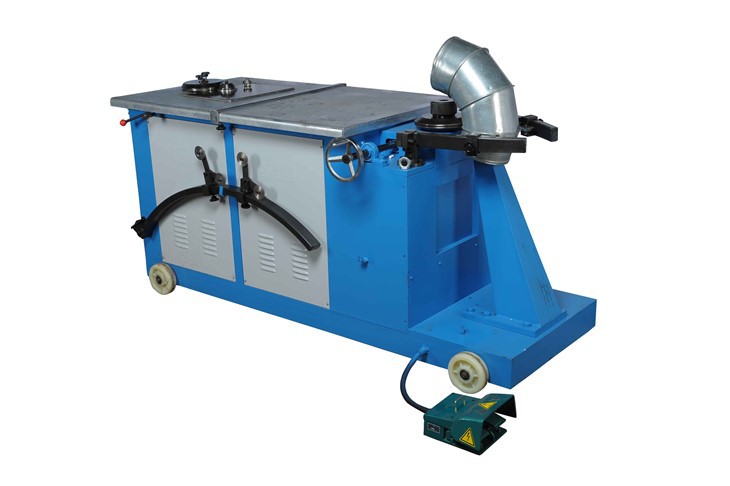
Before delving into the data transfer process, it's essential to understand what Gorelocker Machines are. These machines are specialized equipment used in the manufacturing of round ducts, particularly for creating elbows. There are different types of Gorelocker Machines available, such as the Shrimp Hydraulic Elbow Making Machine, the Round Duct Spiral Helix Gorelocker Elbow Joint Forming Machine, and the Standard Hvac Round Elbow Duct Forming Making Machine. Each machine has its own set of features and functions, but they all play a vital role in the duct manufacturing process.
Reasons for Data Transfer
There are several reasons why you might want to transfer data from a Gorelocker Machine to a computer. Firstly, it allows for better data management. By having the data on a computer, you can easily organize, analyze, and store it for future reference. Secondly, it enables remote monitoring and control. With the data on a computer, you can access it from anywhere and make adjustments to the machine's settings if necessary. Thirdly, it facilitates integration with other software systems. For example, you can integrate the data with your enterprise resource planning (ERP) system to streamline your business processes.

Prerequisites for Data Transfer
Before you start transferring data, there are a few prerequisites that you need to meet.
- Compatibility: Ensure that your Gorelocker Machine is compatible with the computer you want to transfer the data to. Check the machine's user manual or contact the manufacturer for compatibility information.
- Data Transfer Interface: Your machine should have a data transfer interface, such as a USB port, Ethernet port, or Wi - Fi connectivity. If your machine doesn't have a built - in interface, you may need to use an external adapter.
- Software Installation: Install the necessary software on your computer. This software is usually provided by the machine's manufacturer and is used to communicate with the machine and transfer the data.
- Permissions and Security: Make sure that you have the necessary permissions to access the data on the machine. Also, take appropriate security measures to protect the data during the transfer process.
Step - by - Step Guide to Data Transfer
The following is a general step - by - step guide to transferring data from a Gorelocker Machine to a computer.
Step 1: Prepare the Machine
- Power on the Gorelocker Machine and let it initialize.
- Navigate to the data management section of the machine's control panel. This section may be labeled differently depending on the machine model, but it usually contains options for data export.
- Select the data that you want to transfer. You may be able to select specific files, folders, or all the data on the machine.
Step 2: Connect the Machine to the Computer
- If your machine has a USB port, connect it to the computer using a USB cable.
- If you're using Ethernet connectivity, connect the machine to the same local network as the computer using an Ethernet cable.
- For Wi - Fi connectivity, make sure that the machine is connected to the same Wi - Fi network as the computer. You may need to enter the Wi - Fi password on the machine's control panel.
Step 3: Launch the Data Transfer Software
- On your computer, locate and launch the data transfer software that you installed earlier.
- The software may prompt you to search for the connected machine. Click the search or discover button to find the Gorelocker Machine on the network or connected via USB.
- Once the machine is detected, select it from the list of available devices in the software.
Step 4: Initiate the Data Transfer
- In the data transfer software, select the transfer option. This may be labeled as "Export", "Transfer", or something similar.
- Choose the destination folder on your computer where you want to save the data.
- Click the start button to begin the data transfer process. The software will then communicate with the machine and transfer the selected data to the computer.
Step 5: Verify the Data Transfer
- Once the transfer is complete, check the destination folder on your computer to ensure that the data has been transferred successfully.
- Open the transferred files to verify that they are in the correct format and contain the expected data.
Troubleshooting Common Issues
During the data transfer process, you may encounter some common issues. Here are some troubleshooting tips:
- Connection Issues: If the machine is not detected by the computer, check the cables for loose connections. If you're using Wi - Fi, make sure that the machine and the computer are connected to the same network and that the Wi - Fi signal is strong.
- Software Errors: If the data transfer software encounters an error, try restarting the software and the machine. You may also need to update the software to the latest version.
- Data Format Issues: If the transferred data is in an incorrect format, check the data export settings on the machine. Make sure that you're exporting the data in a format that is compatible with the computer's software.
Best Practices for Data Transfer
To ensure a smooth and secure data transfer process, here are some best practices that you should follow:
- Regular Backups: Make regular backups of the data on your computer. This will protect your data in case of a hardware failure, software glitch, or other issues.
- Data Encryption: Use data encryption to protect the data during the transfer process. Most data transfer software supports encryption, so make sure to enable this feature.
- Update Software and Firmware: Keep the data transfer software on your computer and the firmware on the Gorelocker Machine up - to - date. This will ensure compatibility and security.
- Documentation: Keep a record of all data transfers, including the date, time, source, destination, and type of data transferred. This documentation will be useful for auditing and troubleshooting purposes.
Conclusion
Transferring data from a Gorelocker Machine to a computer is a relatively straightforward process if you follow the steps and best practices outlined in this blog. By doing so, you can improve your data management, enable remote monitoring and control, and integrate your machine with other software systems. If you have any questions or need further assistance with data transfer, don't hesitate to reach out. We are here to support you in getting the most out of your Gorelocker Machine. Whether you're looking to upgrade your existing machine or purchase a new one, we have a wide range of high - quality Gorelocker Machines to meet your needs. Contact us today to discuss your requirements and start a procurement negotiation.
References
- Manufacturer's user manuals for Gorelocker Machines
- Technical documentation provided by the data transfer software developers